
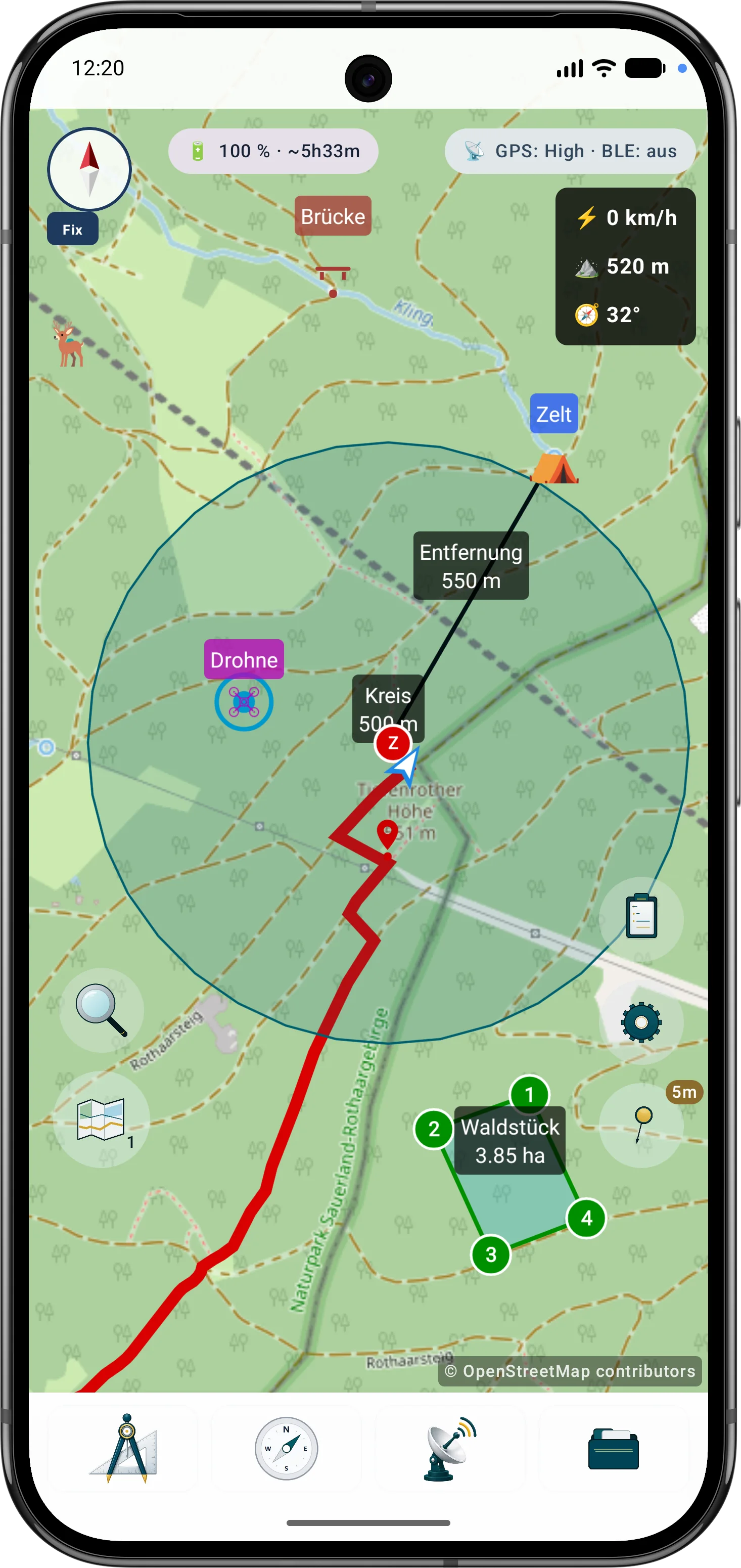
 Compass & FixMap orientation and fixed bearing direction.
  EnergyShows battery level, estimated runtime and GPS/battery strategy hints. Opens GPS, battery and GNSS details.
 GPS/BLEShows GPS accuracy, radio status and active live functions such as tracking, groups, drones, navigation or search grid. Opens status details.
 Telemetry displayShows speed, altitude and heading angle directly on the map while you are working.
 Own positionMarks your current GPS position and viewing direction on the map.
 SearchSearch combines coordinate input and POI search. Project objects are available in the object browser.
  LayersManages map slots, the active map, vector layers and raster overlays.
  Object browserHere you find markers, waypoints, tracks, routes, areas, circles, distances, bearings, viewranges and search grids. You can search, filter, show or hide items, create collections, open details, edit, copy, move, export or delete objects.
 SettingsHere you control profiles, appearance, language, units, coordinate format, GPS, compass, maps, layers, terrain, POI and operation options.
 Tools
Tools Navigate
 Live
Live Data
DataTools
The toolbar starts map actions directly on the workspace.
- Add markers and document points
- Create distances, bearings, areas and circles
- Set route points and calculate viewranges
- Cancel active tools or undo inputs step by step
Start
A quick introduction to the standard screen, tools, layers, maps, objects, search and live features.
Interface
The standard screen is the map as your workspace. Numbered markers sit next to the visible controls; the legend explains the areas. Only Details links open additional manual pages.
Screen Areas
The key controls are available directly from the map view.
The toolbar starts map actions directly on the workspace.
The settings menu groups behavior, display and working profiles.
Control which map and data layers are visible.
The map browser manages map sources and local data on the device.
The object browser shows the contents of the current project.
Search combines coordinate input and POI search. Project objects are available in the object browser.
The live menu shows running features and quick actions.
First Steps
The most important steps for first use.
Offline data
If you want to work without mobile coverage, download maps, POI, elevation models or overlays from a suitable provider first and import them into ArxSilex MapTools.
Social media
Follow ArxSilex
News, screenshots, videos and short updates about ArxSilex MapTools are also available on these external channels.
These links open external platforms. Their operators are responsible for their own content and data processing. Privacy · Legal notice