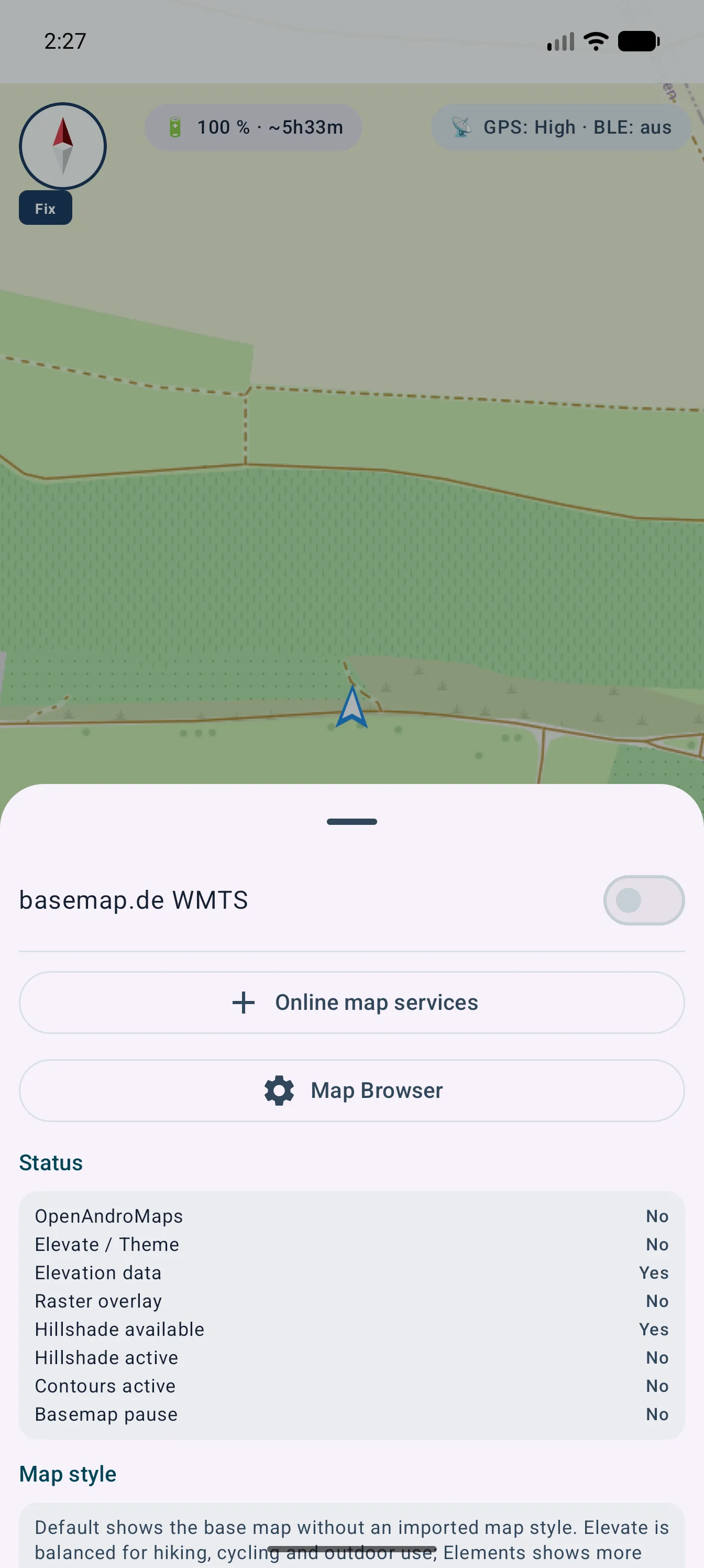
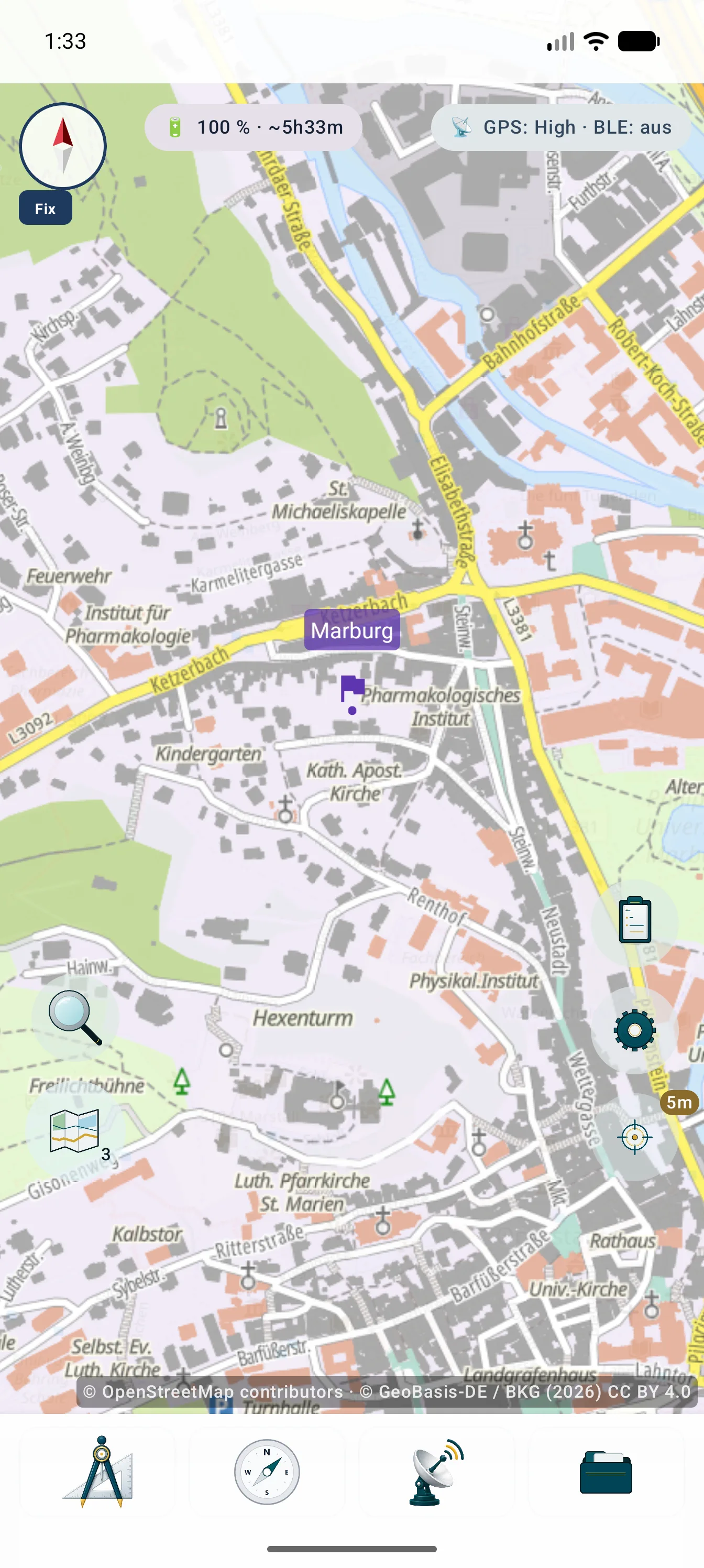
- XYZ
- Schemă de plăci cu z, x și y și originea de regulă în colțul stânga sus.
- OSGeo TMS
- Specificație OSGeo pentru plăci în care axa y începe de obicei de jos; nu este un standard OGC.
- WMTS
- Serviciu OGC pentru plăci pregătite, organizate în TileMatrixSets.
- WMS
- Serviciu OGC care generează imagini pentru extinderea, dimensiunea, straturile și CRS-ul solicitate.
- OGC API Features
- Standard API OGC modern pentru obiecte geografice individuale și atributele lor. MapTools folosește capabilitățile declarate și nu descarcă în mod implicit seturi complete.
- WFS
- OGC Web Feature Service pentru obiecte vectoriale structurate. MapTools acceptă cereri WFS 2.0 și WFS 1.1 doar pentru citire; WFS-T nu este inclus.
- GetCapabilities
- Document al serviciului care anunță versiuni, straturi, stiluri, formate, CRS-uri și limite.
- TileMatrixSet
- Set ordonat de grile de plăci cu scări, origine, dimensiuni și CRS.
- OpenStreetMap (OSM)
- Proiect și set de date deschise. Serverele publice de plăci au propria politică de utilizare.
- Google Maps
- Platformă cartografică integrată prin interfețele oficiale; nu este CRS și nici sursă XYZ generică.
- GeoTIFF
- TIFF cu GeoKeys și alte metadate pentru poziționarea spațială a unui raster.
- Mapsforge .map
- Format vectorial .map și motor de randare pentru hărți offline.
- MBTiles
- Container SQLite pentru plăci de hartă și metadate.
- GeoPackage
- Container OGC bazat pe SQLite pentru vectori, plăci sau acoperiri raster.