
Merkki
 Merkki
Merkit sijoittavat kartalle yksittäisiä pisteitä löydöille, kohtaamispisteille, havainnoille, tarkistuspisteille tai tallennettuja koordinaatteja varten.
Käyttöopas
Käytä työkaluvalikon merkkejä, etäisyyttä, atsimuutteja, alueita, ympyröitä ja näkyvyystyökaluja.
Työkalut-valikko
Työkalut-valikko käynnistää toiminnot, jotka luovat karttaobjekteja tai valmistelevat mittauksia. Monet työkalut kysyvät ensin lähdettä: koordinaatit, olemassa olevat kohteet tai nykyinen GPS-sijaintisi.
Merkit sijoittavat kartalle yksittäisiä pisteitä löydöille, kohtaamispisteille, havainnoille, tarkistuspisteille tai tallennettuja koordinaatteja varten.
Etäisyys mittaa kahden pisteen välistä viivaa. Valitse ensimmäinen piste ja sitten toinen piste.
Atsimuutit luovat suuntaviivoja kursseille, havainnoinnille ja kohteen kaventamiselle.
Alueet merkitsevät polygoneja hakualueita, työalueita, lohkoja, vaaravyöhykkeitä tai kartoitettua maastoa varten. Pro:ssä pylväs- ja aitaarviot voidaan laskea myös alueiden ja ympyröiden tiedoista.
Ympyrä piirtää säteen keskipisteen ympärille. Valikko näyttää nykyisen oletussäteen, esimerkiksi 200 m.
Näkyvyys auttaa kuvaamaan asiaankuuluvaa näkökenttää tai havaintoaluetta pisteestä.
Alivalikot voidaan lajitella usein käytettyjen työkalujen mukaan, joten työnkulkusi tärkeimmät toiminnot ovat helpommin saavutettavissa.
Merkki, valokuva, muistiinpano ja ääni
Valitse paikka avaamalla Marker. Paikkavaihtoehtojen oikealla puolella sama alivalikko sisältää valokuvan, huomautuksen ja äänen. Nämä toiminnot luovat paikkamerkityn merkin käyttämättä pysyvästi tilaa päänäytöllä.
Ota valokuva
Kameran pääsy vaaditaan vain valokuvaamisen aikana.
Mitä haluat tallentaa?
Nykyistä GPS-paikkaa ei ole saatavilla. Valitse muistiinpanon paikka.
Tallenna äänimuistiinpano
Tallennuksen enimmäispituus: 10 minuuttia
Valitse paikka avaamalla Marker. Paikkavaihtoehtojen oikealla puolella sama alivalikko sisältää valokuvan, huomautuksen ja äänen. Nämä toiminnot luovat paikkamerkityn merkin käyttämättä pysyvästi tilaa päänäytöllä.
Työkalut-valikko
Merkit sijoittavat kartalle yksittäisiä pisteitä löydöille, kohtaamispisteille, havainnoille, tarkistuspisteille tai tallennettuja koordinaatteja varten.
Luo merkki manuaalisesti syötetyistä koordinaateista.
Käytä viitteenä olemassa olevaa objektia objektiselaimesta.
Luo merkintä nykyiseen GPS-paikkaasi.
Määritä markkeri luotettavasti useista GPS-korjauksista ja mittaa se uudelleen myöhemmin itsenäisissä istunnoissa.
Panoroi, zoomaa tai kierrä karttaa kiinteän hiusristikon alla. Koordinaatit seuraavat pistettä keskellä; kun kartta pysähtyy, aktiivisen karttapaikan saatavilla olevat tiedot tulevat näkyviin.
Tarkka merkin sijoittelu hiusristikon avulla
Hiusristikkotila täydentää nopeaa karttanapausta. Kartta liikkuu näyttöön kiinnitetyn ristikon alla; sen maantieteellisestä keskustasta tulee myöhempi merkkipaikka.
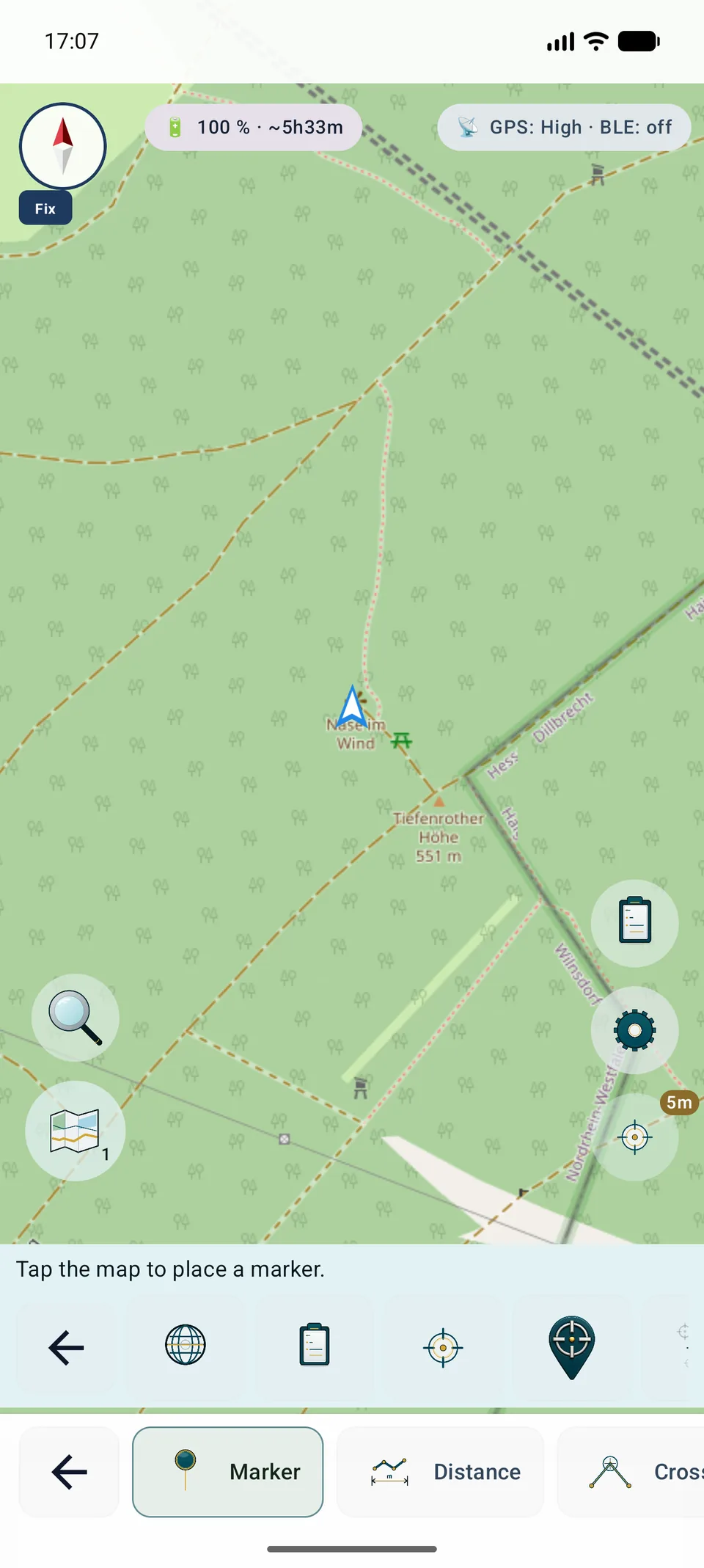
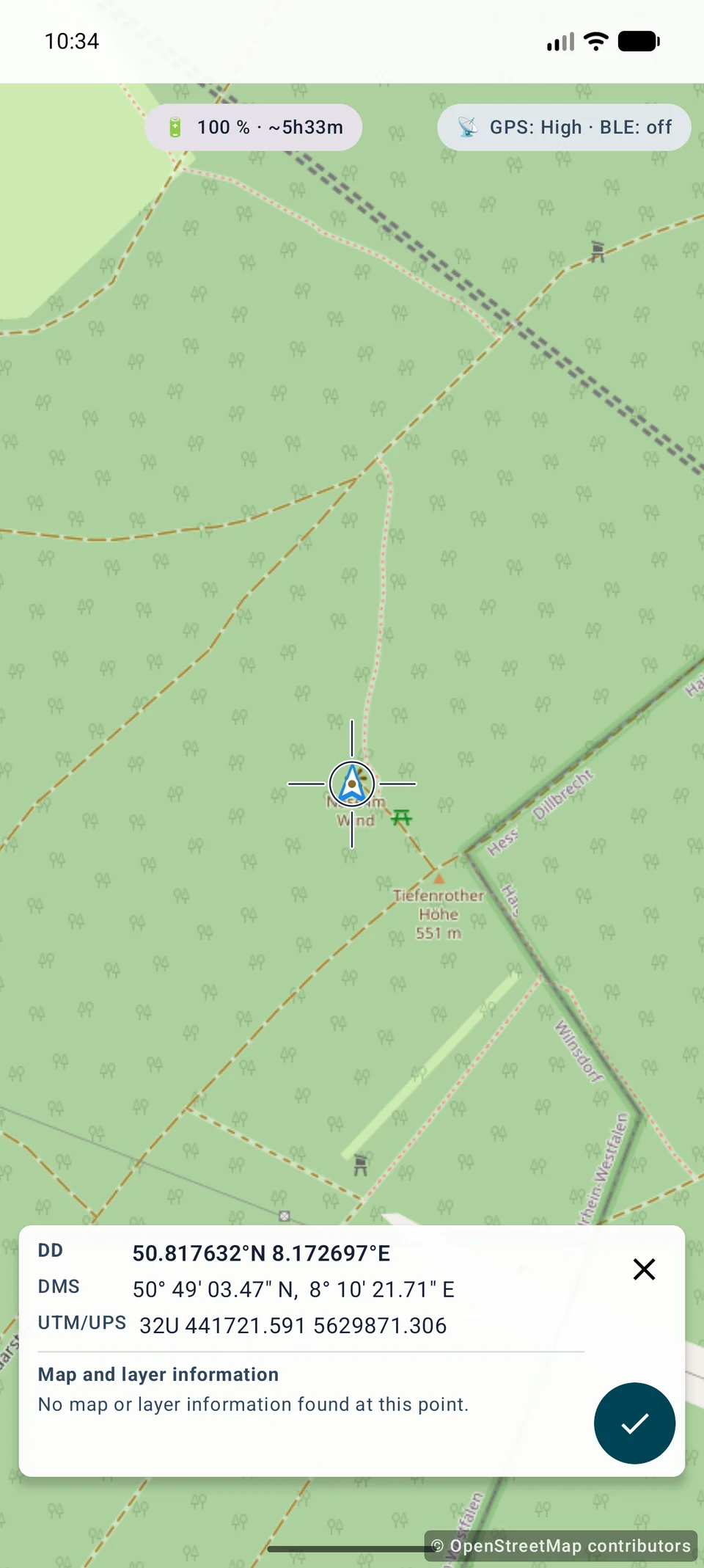
Hiusristikkosijoittelu on saatavilla mallissa Free, eikä se vaadi sijaintilupaa, kun vain siirretään karttaa. Kartan kohdistus, lähde ja zoomaus määräävät visuaalisen tarkkuuden. GPS keskiarvo ja uudelleenmittaus ovat edelleen Pro ominaisuuksia.
Konteksti kartan keskellä
Kun kartta muuttuu vakaaksi, paneeli näyttää lyhyen, rajoitetun esikatselun tiedoista, jotka ovat saatavilla tarkalleen keskellä.
DD, DMS, UTM ja muut valitut muodot käyttävät kukin yhtä riviä. Niiden lokalisoidut pitkät nimet ovat edelleen näytönlukijoiden saatavilla.
Vain aktiivisen karttapaikan lähteistä kysytään: Mapsforge- ja InfoTap-yhteensopivat OGC-sovellusliittymäominaisuudet, WFS-, WMS- tai WMTS-tasot.
Vain haettavat karttakohteet tai FeatureInfo-tiedot näytetään. XYZ, TMS ja rasterilähteet ilman tietorajapintaa eivät tuota keksittyjä attribuutteja.
Valintamerkki avaa merkkivalintaikkunan. Peruuta tai Takaisin säilyttää pisteen; X poistuu, kun taas onnistunut tallennus luo täsmälleen yhden merkin.
Koordinaatit ja paikalliset Mapsforge-tiedot toimivat offline-tilassa. Etätietoja pyydetään vain aktiivisista lähteistä olemassa olevien suojattujen asiakkaiden kautta. Palveluvirhe ei koskaan estä merkkien sijoittamista.
Työkalut-valikko
Etäisyys mittaa kahden pisteen välistä viivaa. Valitse ensimmäinen piste ja sitten toinen piste.
Valitse koordinaatit, olemassa oleva objekti tai Here (GPS).
Valitse kohdepiste samalla tavalla. Sovellus piirtää viivan ja näyttää etäisyyden.
Vertaa sijaintiasi merkin, kahden objektin tai kahden koordinaattimerkinnän kanssa.
Työkalut-valikko
Atsimuutit luovat suuntaviivoja kursseille, havainnoinnille ja kohteen kaventamiselle.
Määrittää, kuinka pitkälle viiva piirretään kartalla.
Käyttää suoraan nykyistä katselusuuntaa.
Avaa kameranäkymän pisteen korjaamiseksi visuaalisesti ja atsimuutin luomiseksi.
Valitse alku koordinaateista ja syötä kulma manuaalisesti.
Valitse aloitus objektiselaimesta ja syötä kulma manuaalisesti.
Aloita nykyisestä GPS-paikastasi ja syötä suunta manuaalisesti.
Työkalut-valikko
Alueet merkitsevät polygoneja hakualueita, työalueita, lohkoja, vaaravyöhykkeitä tai kartoitettua maastoa varten. Pro:ssä pylväs- ja aitaarviot voidaan laskea myös alueiden ja ympyröiden tiedoista.
Lisää useita pisteitä kartasta, koordinaateista, objekteista tai GPS:stä.
Vähintään kolmella pisteellä sovellus luo alueen, jossa on ääriviivat ja koko.
Hallitse aluetta objektiselaimessa, mukaan lukien näkyvyys, vienti ja poistaminen.
Avaa alueen tai ympyrän tiedot laskeaksesi pylväiden etäisyyden, säikeiden lukumäärän, arvioidun aidan pituuden, pylväiden lukumäärän ja säikeen pituuden.
Työkalut-valikko
Ympyrä piirtää säteen keskipisteen ympärille. Valikko näyttää nykyisen oletussäteen, esimerkiksi 200 m.
Valitse koordinaatit, kohde tai Here (GPS).
Käytä tai säädä hakualueiden, etäisyyksien ja turvavyöhykkeiden sädettä.
Ympyrät helpottavat yhden pisteen etäisyyden arvioimista.
Käyttöopas
ViewRange laskee maaston näkyvyyden 360°:n täydessä ympyrässä havaintopisteen ympärillä; se ei käytä yhtä valittua katselusuuntaa.
Aktivoi HGT, DEM GeoTIFF, ASC- tai DTED-tiedot nykyisessä karttakontekstissa ennen aloittamista.
Valitse 1–10 km ja Fast, Standard tai High quality. Suurempi tai tarkempi laskenta vaatii enemmän aikaa ja tehoa.
Osittainen korkeuspeitto tuottaa epätäydellisen tuloksen; tallenna väliaikainen tulos projektiobjektiksi vasta sen tarkistamisen jälkeen.
Merkit ja mitat
Markkerit, aluepisteet, atsimuutit ja ViewRange voivat tallentaa ja näyttää GPS/RTK-laatutietoja, kun laite toimittaa ne. Vapaasti sijoitetuille merkinnöille MapTools lisää maaston korkeuden ja tallentaa, jos aktiivisia korkeustietoja on saatavilla. Merkkien sijainnit voidaan myös laskea keskiarvoista paikannusmittausten sarjasta, jotta pistedokumentaatio olisi toistettavampi.
MapTools
Työkalusta riippuen pisteet voivat tulla koordinaateista, olemassa olevista objekteista, GPS-paikasta tai merkin hiusristikköstä. Kuvakkeet vastaavat nyt sovelluspainikkeita; tavalliset työnkulun vaiheet eivät saa keksittyjä kuvakkeita.
CRS / EPSG
GeoJSON / KML / GPX
WGS84
Ympyrätyökalu
Aseta ensin säde ja avaa sitten hiusristikko. Siirrä karttaa kiinteän keskuksen alle; valittu säde jää näkyviin. Valintamerkki hyväksyy ympyrän keskikohdan ja avaa tavallisen muokkausnäkymän. X tai Takaisin sulkee hiusristikon luomatta ympyrää; suorat karttahanat ovat edelleen käytettävissä. Työnkulku on sama Google Mapsissa ja VTM:ssä.
Yksityiskohtaiset oppaat
Molemmilla työkaluilla on nyt omat työnkulkunsa ja tietosivut.
Mittaa atsimuutti A, siirry toiseen asentoon, mittaa B ja tarkasta perusviiva, leikkauskulma, laatu ja epävarmuus.
Laske koko ympyrän maastonäkymä aktiivisilla korkeustiedoilla; suunta ei ole käyttäjän asetus.
Nykyinen toiminnallisuus
Geodatahaku yhdistää paikalliset POI-kohteet käytössä oleviin WFS- ja OGC-ominaisuustasoihin. Haku, lähteen laajuus, luokka ja säde valitaan tarkoituksella; "Ei sädettä" poistaa etäisyyssuodattimen. Valittu POI avaa ensin kompaktin toimintanäkymän karttaa, kohdetta, merkintää ja jakamista varten.
 Etäisyys
 Suuntima
 Alueet
 Ympyrä
 Näkyvyys
 Koordinaatit
 Objektit
 Täällä (GPS)
 Keskimääräinen GPS-sijainti
 Sijoita hiusristikko