
앱 프로필
두 프로필에는 동일한 MapTools 기능이 있습니다. 이 기기에서 컨트롤이 보이는 모습을 비교하고 시작 레이아웃을 선택하세요.
전체 도구 메뉴에 항상 바로 접근할 수 있습니다. 다양한 MapTools 기능을 자주 사용하는 경우에 적합합니다.
트랙, 경로, 마커와 텔레메트리가 강조됩니다. 사진, 메모와 오디오는 마커 하위 메뉴에 있고 다른 도구는 더 보기에 있습니다.
지도 프리셋
지도 프리셋은 네 개의 슬롯, 순서와 활성 슬롯을 비롯해 지도 소스, 스타일, 레이어, 지형, 오버레이, 경로 설정 및 객체 표시를 저장합니다. UI 프로필, 좌표, 색상, 아이콘 및 메뉴 순서는 전역 설정으로 유지됩니다.
앱 프로필
컨트롤 배치만 변경하며 지도, 레이어, 프로젝트나 기록된 데이터는 변경하지 않습니다.
두 프로필에는 동일한 MapTools 기능이 있습니다. 이 기기에서 컨트롤이 보이는 모습을 비교하고 시작 레이아웃을 선택하세요.
전체 도구 메뉴에 항상 바로 접근할 수 있습니다. 다양한 MapTools 기능을 자주 사용하는 경우에 적합합니다.
트랙, 경로, 마커와 텔레메트리가 강조됩니다. 사진, 메모와 오디오는 마커 하위 메뉴에 있고 다른 도구는 더 보기에 있습니다.
지도 프리셋은 네 개의 슬롯, 순서와 활성 슬롯을 비롯해 지도 소스, 스타일, 레이어, 지형, 오버레이, 경로 설정 및 객체 표시를 저장합니다. UI 프로필, 좌표, 색상, 아이콘 및 메뉴 순서는 전역 설정으로 유지됩니다.
검색, 지도 전환, 객체 브라우저, 설정, GPS/InfoTap과 지도 컨트롤 숨기기는 두 프로필에서 사용할 수 있습니다.
설정에서 지도 프리셋을 관리하고 이 소개를 반복하거나 기능 개요를 열며 앱 프로필을 전환할 수 있습니다. 프로필은 배치만 바꿉니다.
컨트롤 배치만 변경하며 지도, 레이어, 프로젝트나 기록된 데이터는 변경하지 않습니다.
지도 및 레이어
활성 기본 지도를 오버레이 및 가져온 레이어 데이터와 별도로 관리합니다.
지도 소스와 오프라인 지도는 지도 브라우저에서 관리합니다.
슬롯을 탭하여 활성화하세요. 선택기를 통해 할당된 지도를 변경합니다.
기본 / 기본 지도
사용자 지정 테마
활성 기본 지도를 오버레이 및 가져온 레이어 데이터와 별도로 관리합니다.
HGT 타일은 지점, 프로필, 분석의 고도 값과 표시 중인 음영기복 렌더링을 제공합니다. DEM GeoTIFF, ASC 및 DTED도 지원됩니다.
지도 프리셋
지도 프리셋은 네 개의 슬롯, 순서와 활성 슬롯을 비롯해 지도 소스, 스타일, 레이어, 지형, 오버레이, 경로 설정 및 객체 표시를 저장합니다. UI 프로필, 좌표, 색상, 아이콘 및 메뉴 순서는 전역 설정으로 유지됩니다.
슬롯을 탭하여 활성화하세요. 선택기를 통해 할당된 지도를 변경합니다.
지도 소스와 오프라인 지도는 지도 브라우저에서 관리합니다.
지도 프리셋 저장
지도 프리셋은 네 개의 슬롯, 순서와 활성 슬롯을 비롯해 지도 소스, 스타일, 레이어, 지형, 오버레이, 경로 설정 및 객체 표시를 저장합니다. UI 프로필, 좌표, 색상, 아이콘 및 메뉴 순서는 전역 설정으로 유지됩니다.
컨트롤 배치만 변경하며 지도, 레이어, 프로젝트나 기록된 데이터는 변경하지 않습니다.
표시
마커, 선, 경로, 방위, 영역 및 ViewRange의 색상은 색상 필드, 색조 컨트롤, RGB 값 및 Hex 코드로 선택할 수 있습니다. 대화상자는 현재 색상과 선택한 색상을 미리 보여 줍니다. 즐겨찾기는 단순하게 유지됩니다: 전역 객체 색상과 영역 및 ViewRange 전용 즐겨찾기입니다.
유지보수
서비스 카탈로그가 변경됩니다. MapTools는 제어된 방식으로 기능을 다시 읽고, 차이점을 표시하고, 명확한 참조를 복구할 수 있습니다.
기능은 서비스 또는 로컬 XML 파일에서 읽을 수 있습니다. XML에는 오프라인 사용을 위한 지도 이미지가 아닌 카탈로그가 포함되어 있습니다.
추가, 제거, 변경된 레이어와 영향을 받은 지도 사전 설정은 변경 사항이 적용되기 전에 표시됩니다.
명확한 참조는 복구될 수 있습니다. 내용이 변경된 사전 설정은 이전 테스트 상태를 잃어버리므로 다시 테스트해야 합니다.
공개 카탈로그는 HTTP 캐시 메타데이터를 따릅니다. 비공개 응답은 지속되지 않습니다. FeatureInfo에서 반환된 HTML은 활성 웹 콘텐츠로 렌더링되지 않습니다.
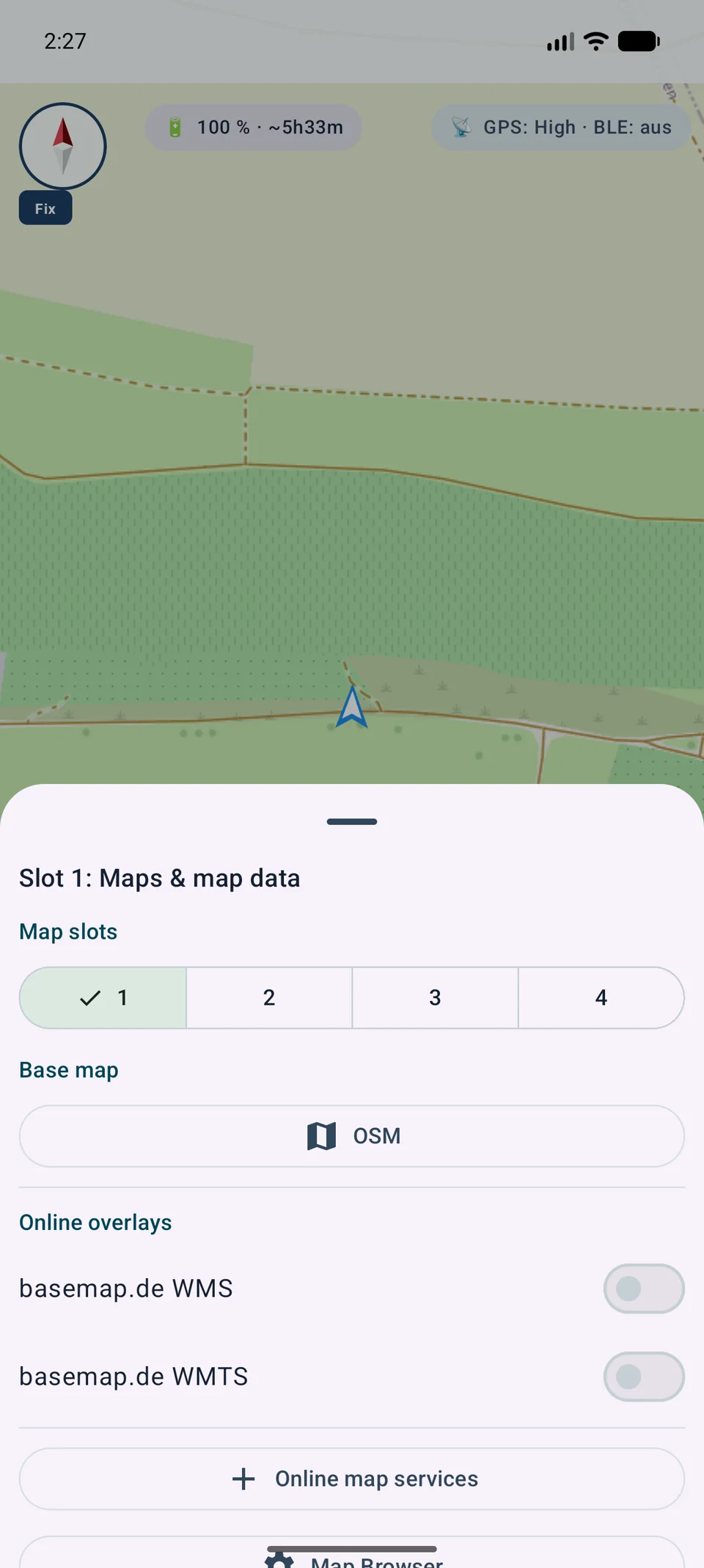
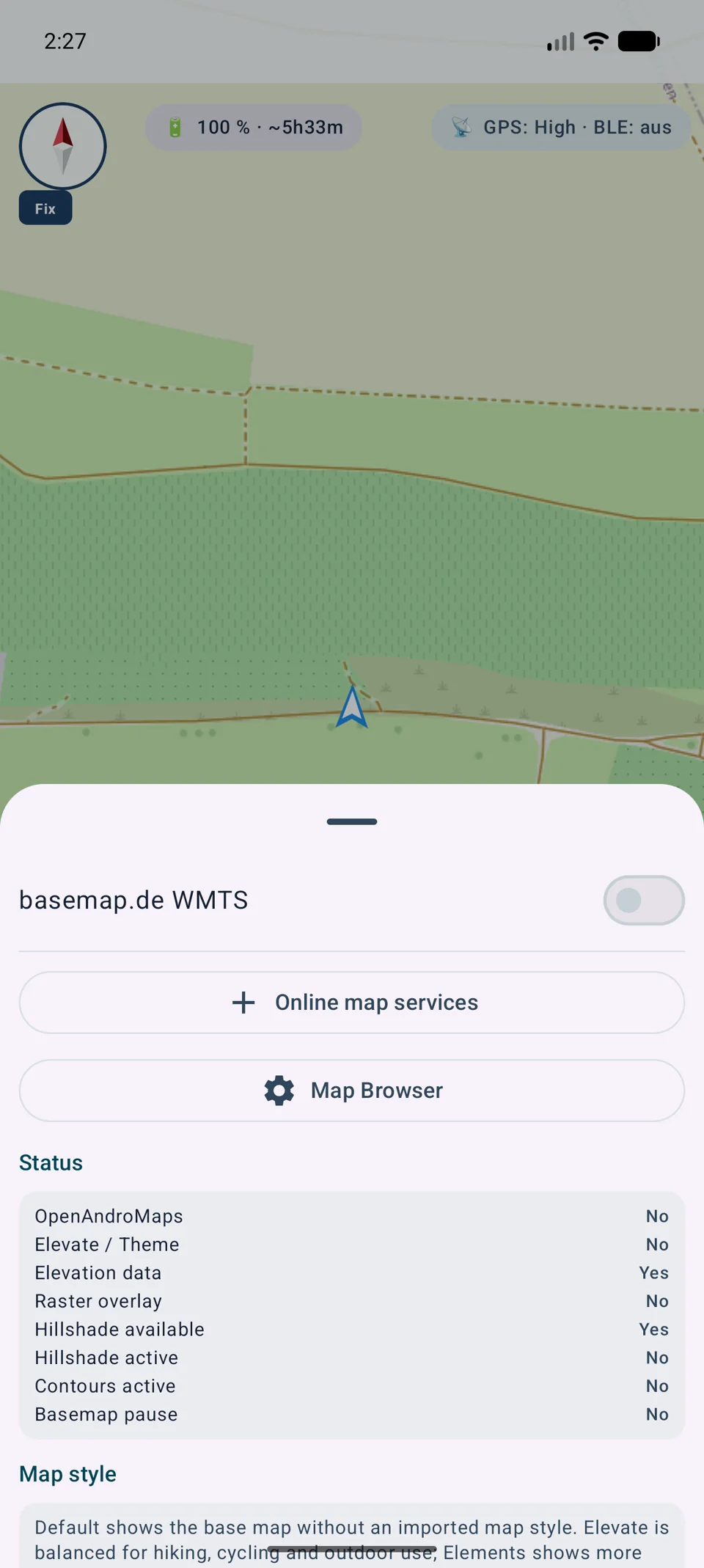
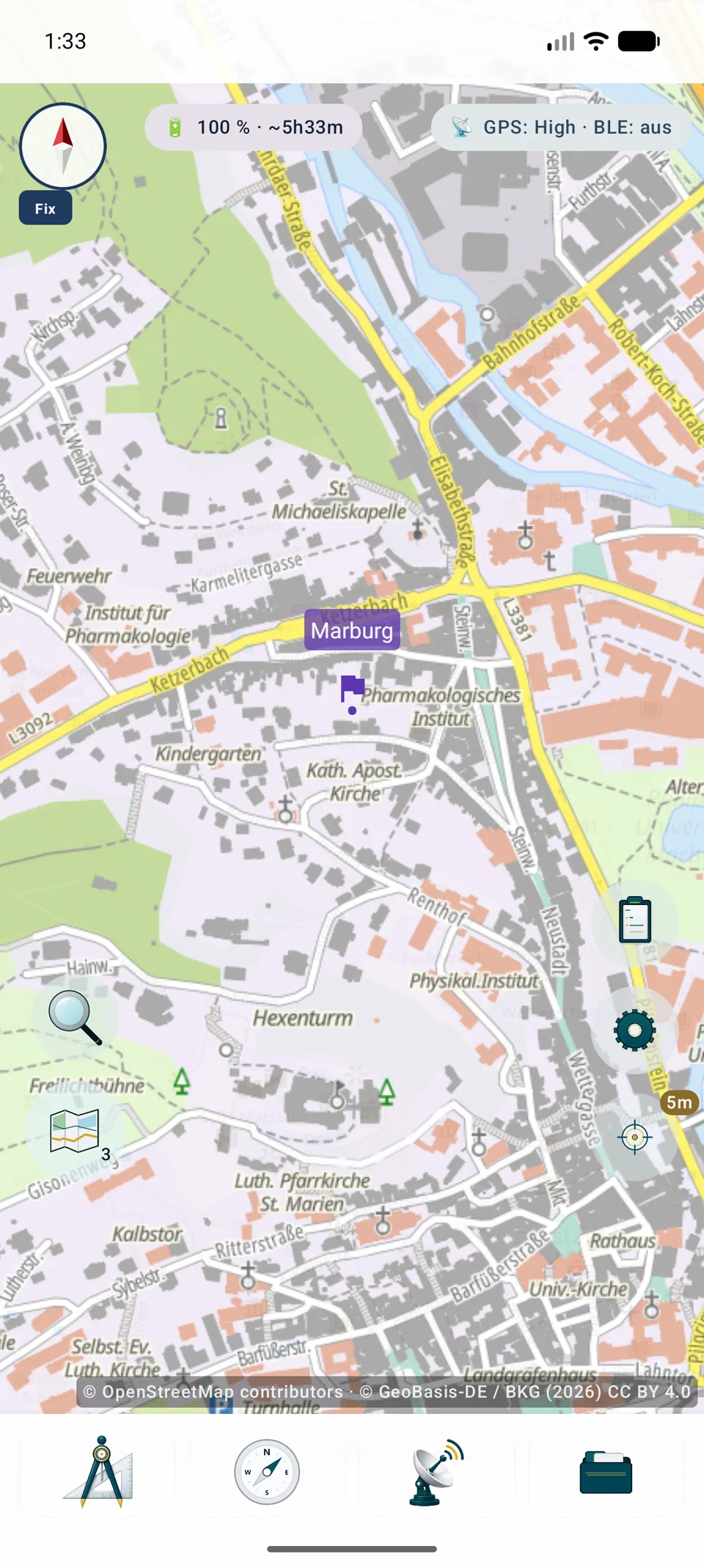
성공적인 요청은 무료 사용 또는 캐싱 권한을 증명하지 않습니다. 라이센스, 등록, 할당량 및 귀속은 서비스 운영자가 결정합니다.
지도 프리셋
지도 프리셋은 네 슬롯 전체와 순서, 비활성 슬롯, 활성 슬롯 및 객체 표시 상태를 저장합니다. 표준 프리셋은 계속 사용할 수 있으며 사용자 프리셋은 Pro 기능입니다.
이전 사용자 단일 슬롯 프리셋은 한 번 이전됩니다. 이름, ID, 지도 내용과 객체 표시 상태가 유지됩니다. 기존 지도 내용은 업데이트 시 활성 슬롯에 배치되고 나머지 세 슬롯은 현재 설정에서 복사됩니다. 이전 과정은 사용 중인 설정을 전환하지 않습니다.
기존 파일은 새 형식을 원자적으로 기록하고 정상적으로 다시 읽은 뒤에만 삭제됩니다. 누락된 지도, 테마, 레이어 또는 지형 데이터 참조는 유지되며 해당 슬롯은 불완전으로 표시됩니다.
현재 설정이 불러온 프리셋과 다르면 MapTools가 변경 상태를 표시합니다. 전환할 때 저장, 버리기 또는 취소를 선택할 수 있습니다.
온라인 지도
MapTools는 사용자 지정 HTTPS 소스를 기본 지도 또는 오버레이로 사용할 수 있습니다. 지도에서는 비슷해 보여도 설정, 타일, CRS, 객체 조회 방식이 서로 다릅니다.
XYZ
z, x, y가 포함된 URL 템플릿으로 준비된 타일을 가져옵니다. 원점은 왼쪽 위이고 전 세계 소스에는 Web Mercator가 흔히 사용됩니다.
OSGeo TMS
OSGeo TMS도 고정 타일을 사용하지만 보통 아래에서 y를 셉니다. MapTools가 이 차이를 처리합니다.
WMTS 1.0.0
GetCapabilities가 레이어, 스타일, 형식, CRS, TileMatrixSets를 설명합니다. MapTools는 호환 매트릭스를 선택하고 여러 레이어의 순서를 정합니다.
WMS 1.1.1 / 1.3.0
WMS는 범위, 크기, CRS에 맞는 이미지를 생성합니다. MapTools는 1.1.1/1.3.0, 레이어, 스타일, 차원, 제공되는 GetFeatureInfo를 지원합니다.
URL이나 표준만으로 가격, 등록, 할당량, 캐시, 라이선스를 알 수 없습니다. 항상 제공자의 조건을 확인하십시오.
사용 방법
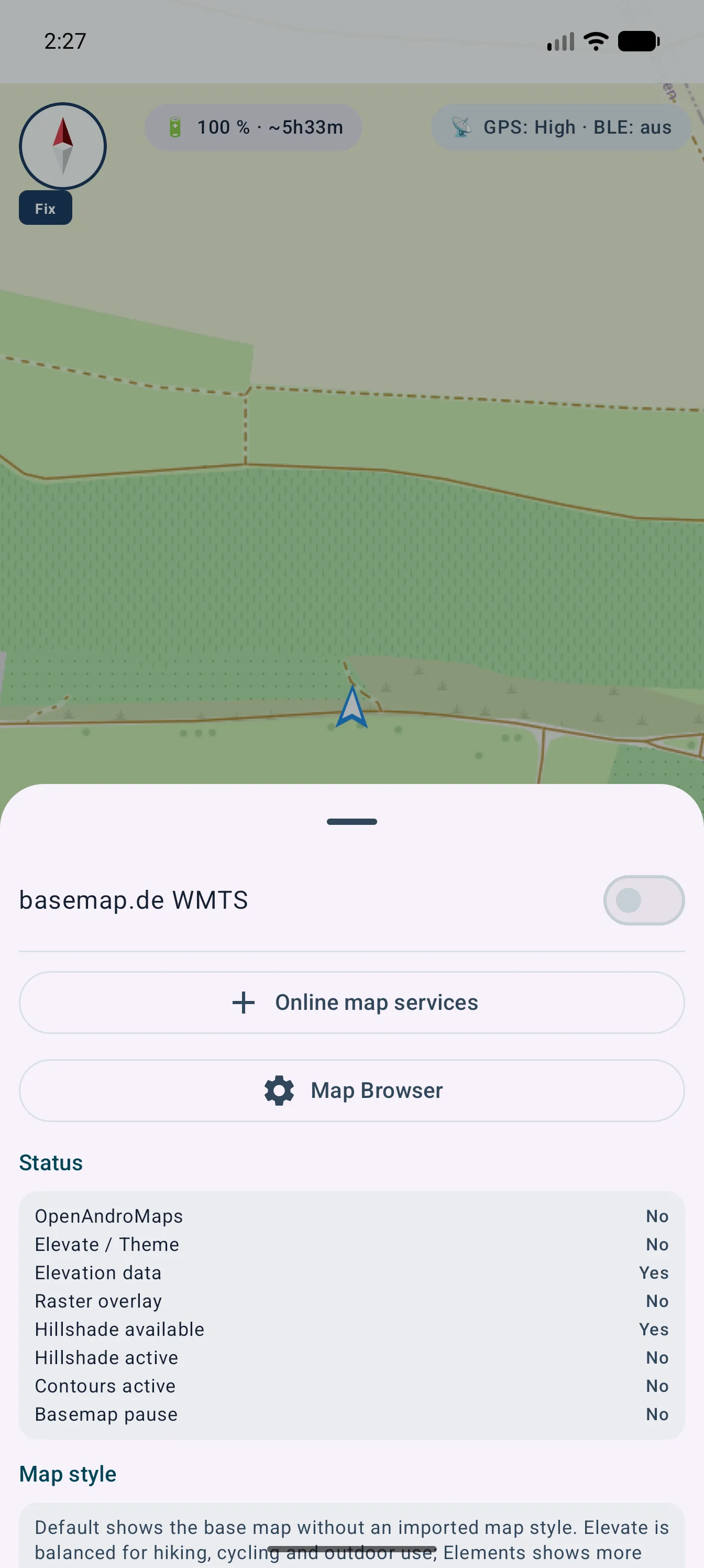
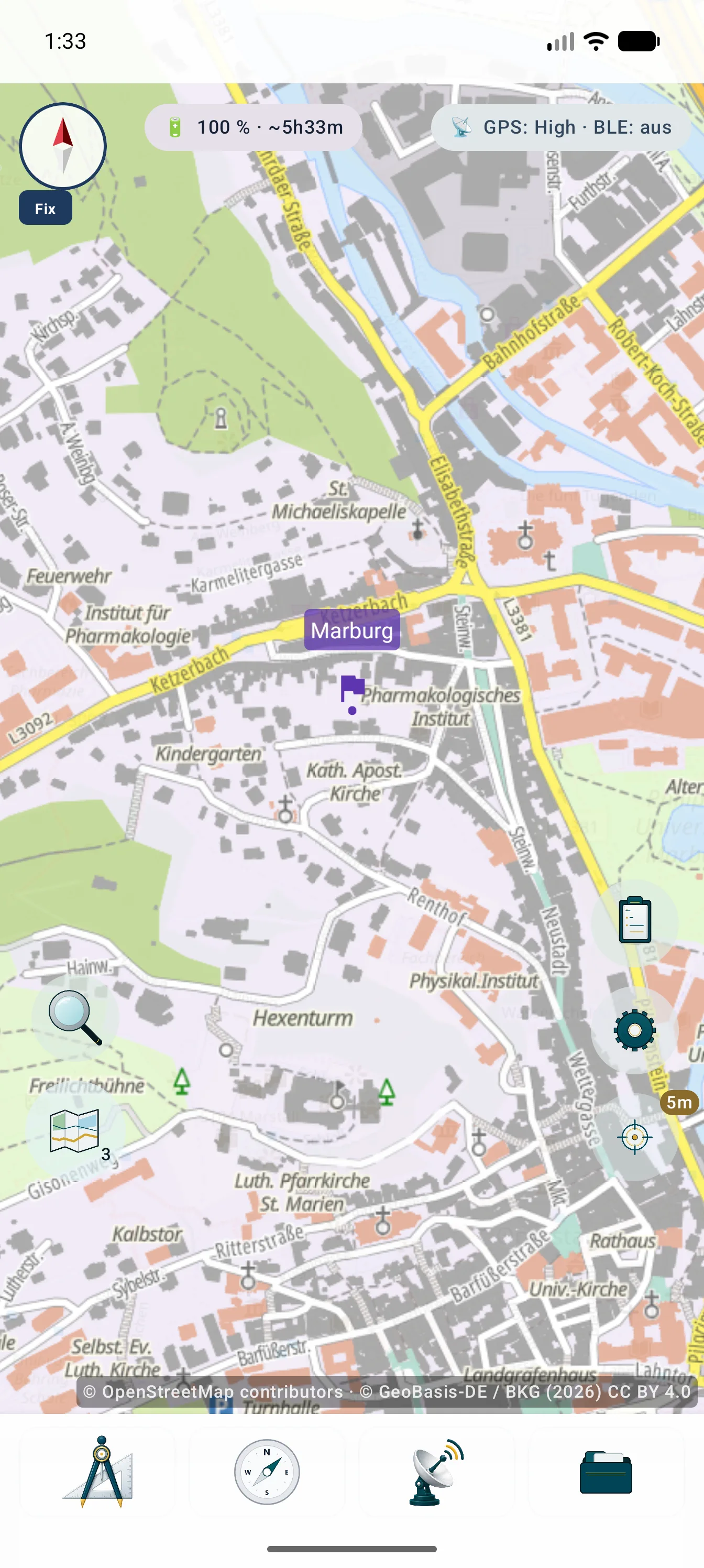
이미지는 지도 위치에서 설정을 여는 방법, 중앙 관리, 출처가 표시된 결과를 보여 줍니다.
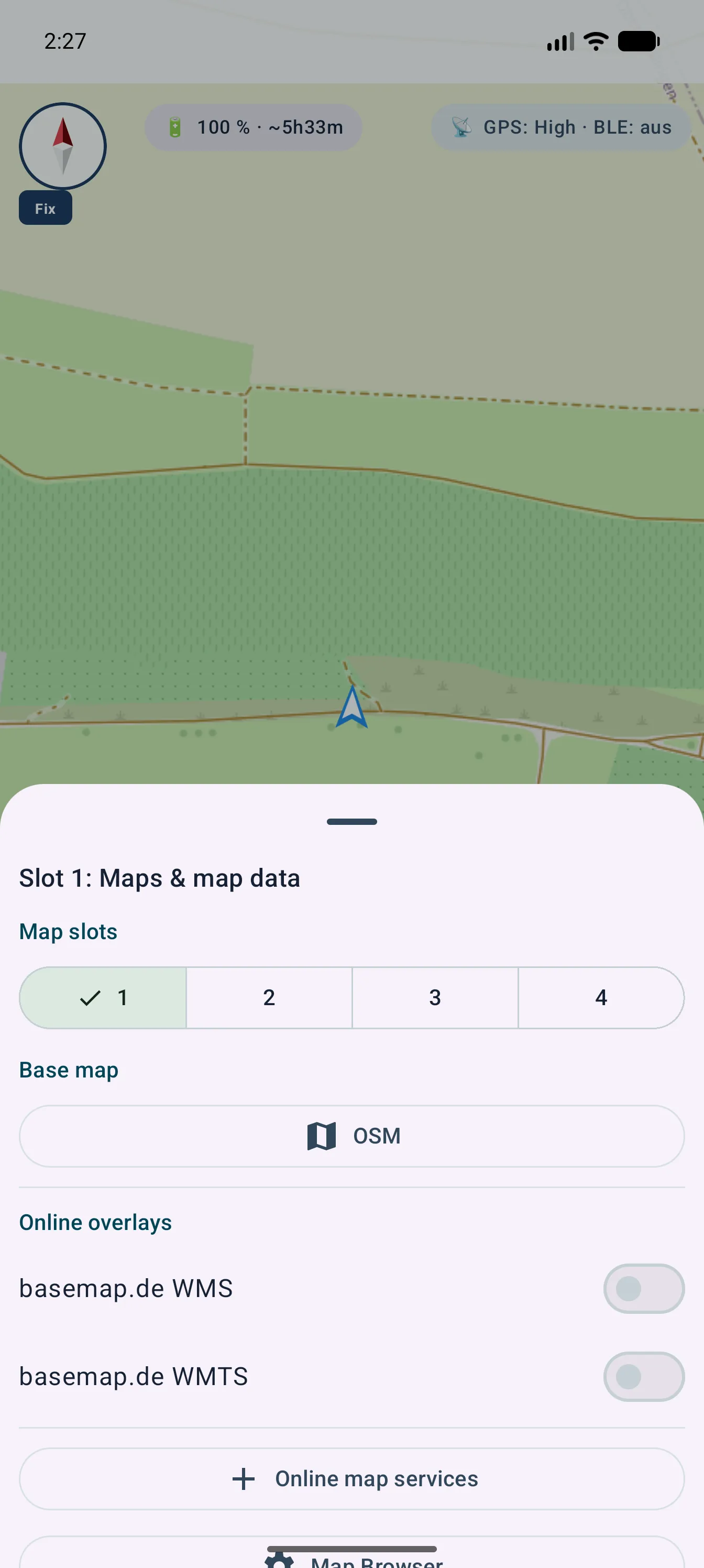
렌더링과 보안
설정에는 추적 가능한 렌더링에 필요한 URL과 기술적·법적 정보가 유지됩니다.
호환되는 WMS 또는 WMTS 레이어를 함께 선택하고 정렬하고 저장하고 편집할 수 있습니다. 기본, 오버레이, 불투명도는 위치별로 조정합니다.
Web Mercator는 직접 렌더링합니다. 다른 허용 래스터 CRS는 범위와 축척 제한을 지키면서 기기에서 재투영합니다.
조회 가능한 WMS 레이어에서는 터치한 위치의 정보를 GetFeatureInfo로 받을 수 있습니다. 내용과 제공 여부는 서비스에 따라 다릅니다.
비밀번호, 키, 토큰은 암호화되고 백업 및 .asmaps에서 제외됩니다. 활성 소스의 필수 출처 표시는 합쳐서 표시합니다.
외부 서비스와 데이터는 MapTools에 자동으로 포함되지 않습니다. 비용, 계정, 제한, 가용성, 캐시, 권리는 제공자에 따라 다릅니다.
기술 용어집
OpenStreetMap 같은 제공자, WMS 같은 프로토콜, MBTiles 같은 컨테이너는 서로 다른 계층을 설명합니다.
재개
실제 백그라운드 복구 시 VTM 및 오프라인 지도는 UI 스레드 밖에서 준비됩니다. 무거운 추가 레이어보다 기본 지도를 먼저 사용할 수 있으며 비모달 로딩 표시는 500ms가 지난 경우에만 나타납니다.
상세 안내
온라인 타일이며 파일 가져오기가 아닙니다.
슬롯을 길게 눌러 XYZ/TMS를 추가하고 {z}/{x}/{y} 또는 {quadkey}/{s} HTTPS, 줌을 설정해 시험·저장합니다.
인증을 분리하고 출처, 계정, 비용, 할당량, 라이선스, 캐시, 개인정보를 확인합니다. TMS는 Y 계산이 다릅니다.